The Complete Researcher’s Guide to Getting Started With Claude Projects vs Cowork vs Code
|
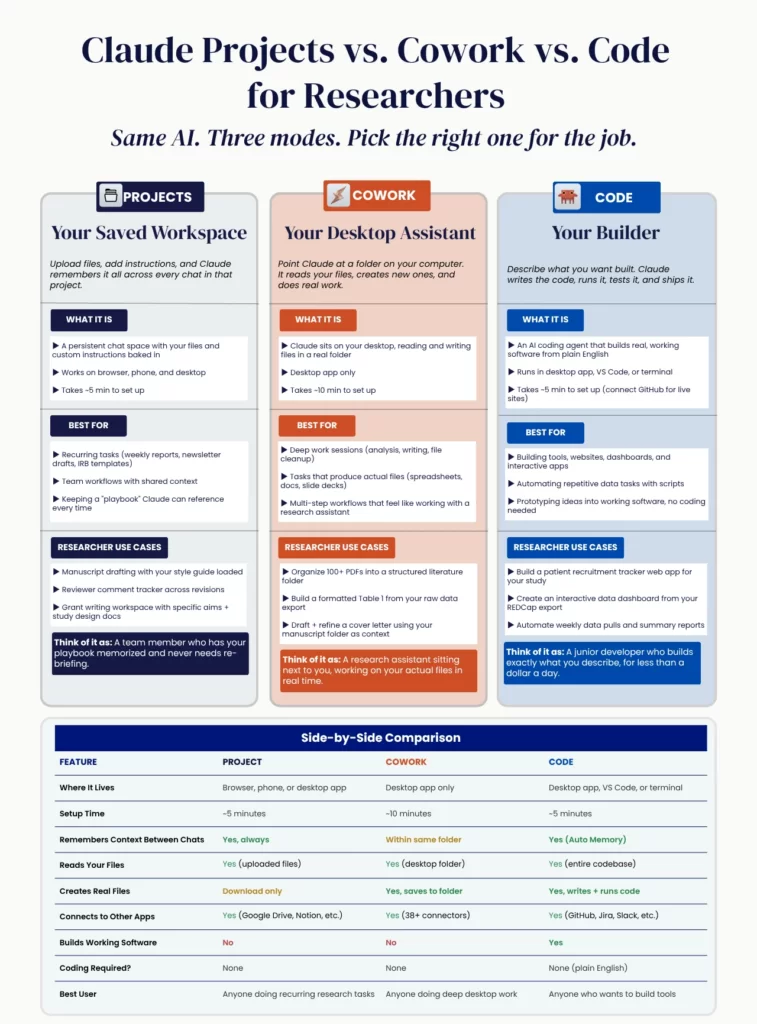
The Complete Researcher’s Guide to Getting Started With Claude Projects vs Cowork vs Code Read at RisingResearcherAcademy.com. In this post, we will be discussing how to pick the right Claude for your research work. (Because there are 3 now. And you’re probably only using 1.) I kept hearing people say: “I use Claude for everything.” That’s like saying “I use Microsoft for everything” without knowing the difference between Word, Excel, and PowerPoint. Claude now has 3 distinct modes. Each one solves a different problem. Before I break them down, let me tell you how I got here. My Switch (And Why I Wish I’d Done It Sooner)I used ChatGPT as my primary AI tool for almost two years. I had built-in projects, custom GPTs, and daily workflows. Memory was sticky. Everything was dialed in. I used Claude occasionally, but never committed. Then Claude released Cowork and Opus 4.6. I first realized something had shifted when I was testing models for Research Boost. For context: every time a major model drops, we test it against each step of the academic writing process. Introduction drafting. Methods structuring. Results interpretation. Discussion framing. Literature grounding. We run the same prompts, the same source material, the same evaluation criteria across all models. When Claude’s latest models started outperforming on the writing-heavy stages, specifically the nuanced work like framing a Discussion section or synthesizing conflicting evidence from multiple papers, that’s when I decided to go deep. The context window was substantially larger (approximately 750,000 words). The writing quality was noticeably better. Not “slightly better on a benchmark” better. Better in the way that matters to researchers: it could hold my entire manuscript draft, my study protocol, and my reviewer comments in memory at the same time and produce output that actually sounded like a human wrote it. So I gave it a full try. I switched slowly over the course of a month. Now I’m kicking myself for not doing it earlier. For knowledge workers, and specifically those in research, Claude is hands down the best AI to use right now. I still use ChatGPT and Gemini for specific tasks. But Claude is my main engine. If you’ve been using ChatGPT only, I’d encourage you to try Claude again. To use the full capabilities we’ll discuss below, you do need a Pro plan at $20/month. I’d start there and see if you get value out of it within the first week. (Full disclosure: I have no affiliation with Anthropic. I’m just telling you what works.) Now, here’s the thing that surprised me. When I switched, I didn’t just discover a better chatbot. I discovered that Claude isn’t one tool anymore. It’s three. Claude Projects = your saved workspace (think: a persistent research environment that remembers everything) Claude Cowork = your desktop research assistant (think: an RA who works on your actual files) Claude Code = your personal builder (think: a junior developer who builds whatever you describe in plain English) Same AI brain. Three different environments. Three different jobs. Let me walk you through each one. 1. Claude Projects: Your Saved WorkspaceThis is where most researchers should start. And it’s the closest to what you’re already used to. What It Actually IsA Project is a persistent workspace inside Claude where you upload files and write custom instructions that stick across every conversation. Every time you start a new chat inside that Project, Claude already has your files loaded and your instructions memorized. You don’t re-explain anything. It works on your browser, your phone, and the desktop app. Setup takes about 5 minutes. The Problem It SolvesYou know the frustration. You spend 10 minutes giving Claude context about your study design, your variables, your target journal, your writing preferences… and then tomorrow, you start over from scratch. Projects eliminate that entirely. You create a Project once. Upload your relevant files. Write your instructions. And every single conversation inside that Project begins with full context. No re-uploading your manuscript draft. No reminding Claude you write in active voice and despise the phrase “it is well-established that.” How to Set It Up (5 Minutes)1. Open claude.ai 2. Click “Projects” in the left sidebar 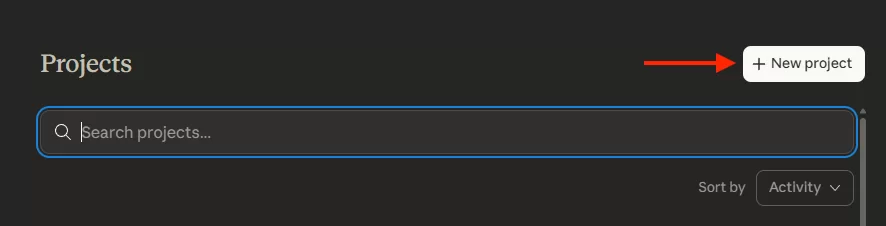 3. Click “Create a new project” 4. Name it something specific: “Hypertension Manuscript, JAHA Submission” 5. Write custom instructions in the Project description 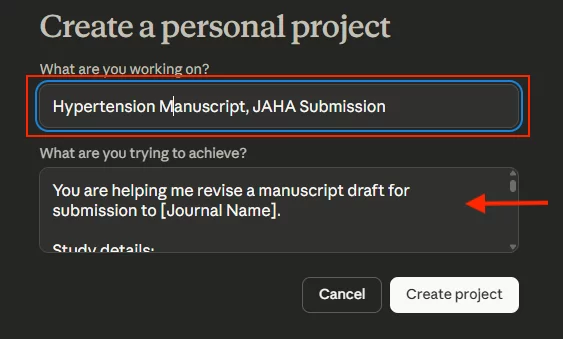 6. Upload your key files: manuscript draft, study protocol, target journal guidelines 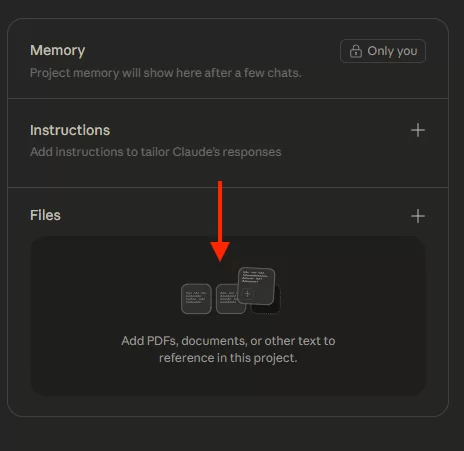 What to Put in Your Project InstructionsThis is the part most people skip. It’s also the part that makes the biggest difference. Your Project instructions are like an onboarding document for a new research assistant. You write it once. Claude follows it for every conversation in that Project. Here’s a template I use: The more specific your instructions, the less you’ll need to correct Claude later. This is the same principle behind how we are building Research Boost. The platform will pre-load the context for each section of your manuscript (your study details, your target journal’s conventions, the IMRaD structure) so the AI doesn’t start from a blank slate every time. Best Research Use CasesManuscript Drafting Workspace. Upload your draft, statistical output, study protocol, and target journal guidelines. Every chat in this Project can reference all of them. Ask Claude to rewrite your Results section in one chat. Draft a response to Reviewer 2 in the next. Claude already knows your study, your data, your journal. No setup required. Grant Writing Hub. Upload your specific aims, preliminary data, and the funding announcement. Write instructions like: “Help me write NIH-style grant sections. Keep language precise. Avoid jargon a study section reviewer outside my subspecialty wouldn’t know.” Every conversation starts with your full grant context. Journal Club / Literature Review. Upload 10-15 key papers as PDFs. Now you can ask: “What do these papers collectively say about the effect of X on Y?” and Claude synthesizes across your uploaded library. Teaching and Mentorship. If you supervise trainees, create a Project with your lab’s writing guidelines and examples of well-written sections. When a mentee needs help, open that Project and Claude already knows your standards. You can also ask it to transcribe your lecture recordings into pristinely formatted lecture notes with snapshots from the PPT in the right sections. Bottom lineUse Projects when you’re repeating the same type of task with the same background context. Now, Projects are powerful for conversations. But what happens when you need Claude to work on actual files sitting on your computer? That’s where Cowork comes in. 2. Claude Cowork: Your Desktop Research AssistantWhat It Actually IsCowork is a fundamentally different experience. Instead of uploading files into a cloud-based chat, you point Claude at a folder on your actual computer. Claude reads those files, creates new ones, edits existing documents, organizes your folders, and executes multi-step tasks. The output isn’t text in a chat window. It’s real files that appear in your folder. Word documents, spreadsheets, PDFs, slide decks. Deliverables you can open in Microsoft Office, email to your co-PI, or upload to a journal submission portal. Cowork lives in the Claude desktop app (available on both Mac and Windows now). Setup takes about 10 minutes. The Problem It SolvesHere’s a scenario you know well. You have a folder with 87 PDFs from a literature search. You need to screen them, extract key data points, organize them by theme, and build an evidence table. In a regular chatbot, you’d upload them one by one, copy-paste the output somewhere, and manually compile everything. Days of work. In Cowork, you point Claude at the folder and say: “Read all the PDFs in this folder. For each one, extract the first author, year, study design, sample size, primary outcome, and main finding. Create a spreadsheet with one row per paper. Flag any that don’t meet my inclusion criteria.” Claude does the work. The spreadsheet appears in your folder. You open it in Excel. That’s the shift. Cowork produces real files from real files. How to Set It Up (10 Minutes)1. Download the Claude desktop app from claude.com/download 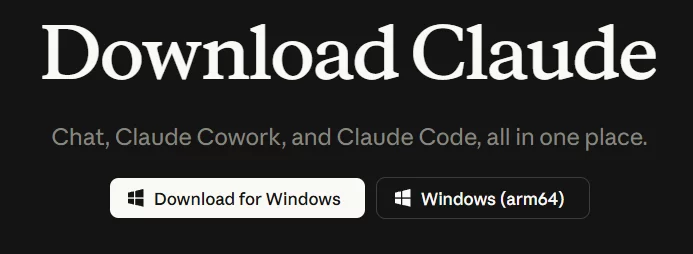 2. You need a Pro plan ($20/month) or higher 3. Open the app and click the “Cowork” tab at the top 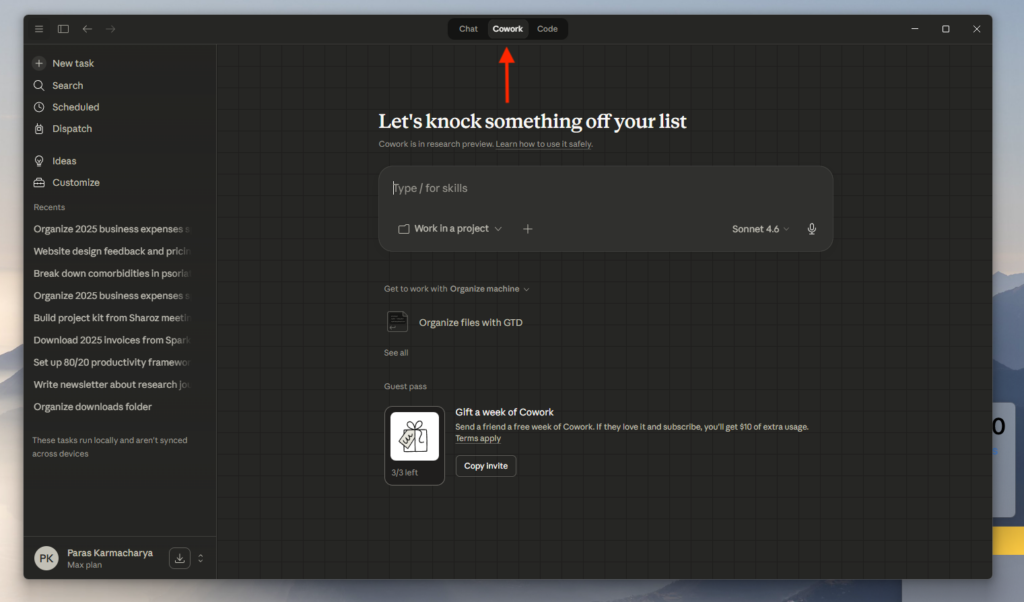 4. Select a folder from your computer 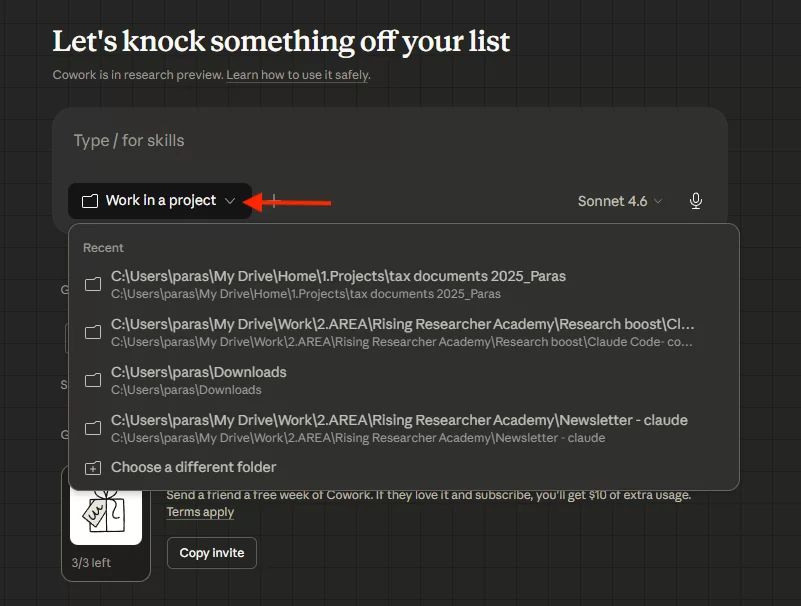 5. Start typing what you want done No terminal. No coding. No GitHub. Pick a folder and talk. How It Actually WorksWhen you give Cowork a task, it doesn’t just answer. It makes a plan first. You’ll see Claude write out what it intends to do, step by step, before it starts. You can review the plan, correct it, and then approve execution. Think of it like getting a proposal from a research coordinator before they start the work. You sign off on the approach first. Then Claude executes while you watch, or go get coffee. Best Research Use CasesLiterature Screening and Data Extraction. Point Cowork at your downloads folder after a PubMed export. Tell it: “Read every PDF. Create a screening spreadsheet with columns for first author, year, title, study design, population, intervention, outcome, and a 2-sentence summary. Highlight duplicates.” Claude reads each paper and builds the spreadsheet. You do the final screening, but the tedious extraction is handled. Building a Formatted Table 1. You have a CSV export from REDCap or SAS. Tell Cowork: “Create a Table 1 comparing Group A vs Group B. Use means (SD) for normal continuous variables, medians [IQR] for skewed variables, and n (%) for categorical. Format it for journal submission.” A Word document or spreadsheet appears in your folder. Not text in a chat window. Manuscript File Management. Your folder is a mess. Draft_v3_FINAL_FINAL_revised_ACTUAL.docx. Tell Cowork: “Organize this folder. Rename files consistently. Create subfolders for drafts, figures, supplementary materials, reviewer correspondence, and references. Move everything to the right place. Summarize what you did.” Minutes later, your folder is clean. Pro Tip: If you feel nervous about Claude messing it up or deleting your files, start with your downloads folder . Response to Reviewers. Point Cowork at a folder containing your reviewer comments and revised manuscript. Tell it: “Draft a point-by-point response. For each reviewer comment, quote them, summarize what we changed, and reference the page and line numbers in the revised draft.” Claude cross-references both files and produces the formatted response document. This can be a starting point. Data Cleaning. Messy dataset? Missing values coded as 999, inconsistent date formats, duplicates? Tell Cowork: “Read this CSV. Flag missing values, duplicates, and outliers. Create a cleaned version and a separate log documenting every change.” Both files appear in your folder. And it’s not just research files. Here’s a personal example. I am not the most organized and currently we are in the dreaded tax season (in the US). I had a folder full of receipts from the past year: Scattered PDFs, photos of receipts, bank statements. A mess. I pointed Cowork at my tax folder and asked it to read everything, categorize each expense (meals, travel, software, equipment, professional development, etc.), and create a structured spreadsheet with date, vendor, amount, and category for each line item. A few minutes later, I had a fully organized spreadsheet sitting in my folder. I sent it directly to my tax filing expert. What would have taken me an entire day of sorting through receipts took less time than making coffee. The point is: Cowork isn’t limited to research workflows. Anything that involves reading files and producing organized output, it handles. Bottom lineUse Cowork when you’re working on actual files on your computer. But what if the tool you need doesn’t exist yet? What if you need a custom tracker, a dashboard, or an automation built from scratch? That’s what Claude Code is for. 3. Claude Code: Your Personal BuilderWhat It Actually IsClaude Code is an AI coding agent. You describe what you want in plain English. Claude writes the code, runs it, tests it, and builds it. “But I don’t code.” That’s the whole point. Claude Code was originally built for software developers. But non-technical people started using it to build real tools and applications from plain English descriptions alone. At Anthropic’s own hackathon, a cardiologist, an attorney, and a roads worker won the Claude Code competition. They didn’t win because they could code. They won because they understood their problems deeply and could describe exactly what they needed.
This is how parts of Research Boost were built, by the way. I’m not a software engineer. But I was able to describe exactly what I needed: a structured manuscript writing workflow that moves section by section through IMRaD, grounds citations in real literature, and lets the researcher iterate in real time. Claude Code turned that description into working prototype (that a developer could build upon). If a physician-scientist can build a research tool with plain English prompts, you can build the smaller tools your lab needs. The Problem It SolvesEvery research group has workflow problems that could be solved with a simple tool. But you don’t have a developer on the team. And even if you did, they’re backed up for months. Claude Code changes that math entirely. Need a patient recruitment tracker? Describe it. Need an interactive dashboard for your study data? Describe it. Need a script that pulls your REDCap data every Monday, runs summary statistics, and emails you the results? Describe it. (NOTE: all of this needs to be HIPAA compliant, with your data being de-identified with no personal health information first.) How to Set It UpFor researchers who aren’t developers, the desktop app is the simplest entry point: 1. Open the Claude desktop app 2. Click the “Code” tab at the top  3. Select a folder on your computer (this is where Claude will create and save files) 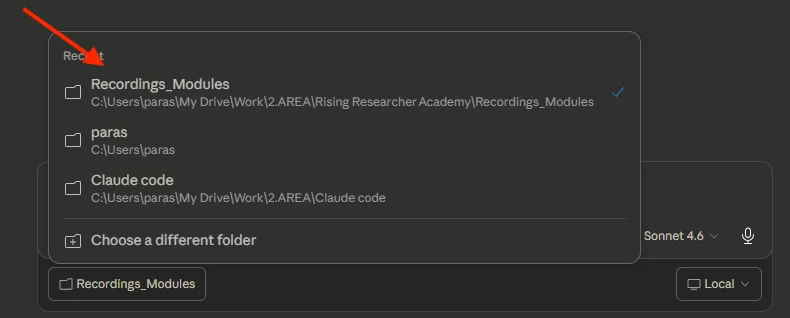 4. Start describing what you want built For extra power, connect Claude Code to a free GitHub account (github.com). This lets Claude push your projects to the web so anyone with a link can access them. Think of GitHub as Google Drive, but for code. How to Talk to Claude CodeThe key skill isn’t coding. It’s describing what you want clearly. Here’s a prompt template that works: “Build me a dashboard” is vague. “Build me a dashboard that shows patient enrollment by site, with a bar chart for monthly accrual and a table showing screen fail reasons” gets results. Here’s a real example from my own experience: We’re currently revamping the Research Boost website for our official launch in May. I was working with a UI/UX designer, and we kept going back and forth because I couldn’t clearly communicate what I actually wanted. Turns out, the problem was simpler than I thought: I didn’t fully know what I wanted until I could see it. So I opened Claude Code and started vibe coding. I described the layout, the flow, the feel I was going for. When I wasn’t sure about a design choice, I’d ask: “What’s the best UI/UX principle for displaying X?” Claude would give me options with reasoning behind each one. I’d pick one, see the result, adjust, and keep moving. I am not a UI/UX designer. I have no formal training in it. But within a few sessions, I had a couple of working website prototypes that captured my vision far better than any mood board or wireframe description could. When I shared those live coded prototypes with my designer, the conversation changed completely. Instead of me struggling to describe an abstract idea, they could see exactly what I was going for. They could improve on it, push back on specific choices, suggest better alternatives, all grounded in something tangible. That’s the real value of Code for non-technical people. You don’t need to ship what you build. Sometimes you just need to show what you mean. Best Research Use CasesPatient Recruitment Tracker. “Build a web app where I can enter patient screening data. Fields: date, patient ID, site, screening result (enrolled, screen fail, declined), and reason. Show a dashboard with total enrolled vs target, enrollment by site, and a timeline chart. Make it mobile-friendly.” Claude builds it. You open the link. It works. Interactive Data Dashboard. Export your study data as a CSV. Tell Claude: “Read this data file and build an interactive dashboard. Demographic summary, outcome distribution plots, and a filterable table. Deploy it so my co-investigators can access it via a link.” Your PI explores the data from their browser. No SAS license required. Literature Search Automation. “Build a tool that takes a PubMed search query, pulls the latest results, extracts title, authors, abstract, and journal, saves them to a spreadsheet. Run it weekly and flag new papers that weren’t in last week’s results.” A task your research coordinator does manually, automated once and running on its own. Clinical Calculators. “Build a web calculator for the DAPSA score. Input fields: tender joint count, swollen joint count, patient pain VAS, patient global VAS, CRP. Calculate the composite score and display the disease activity category. Include a copy-to-clipboard button.” Share the link with your clinic team. They use it during visits. Automated Reporting. “Write a script that reads all the Excel files in my ‘weekly_reports’ folder, combines them into one master spreadsheet, removes duplicates, calculates summary statistics for each site, and saves the output as ‘combined_report_[today’s date].xlsx’.” Something your RA spent 3 hours on every Monday now takes 30 seconds. Bottom lineUse Code when you’re building something new that doesn’t exist yet. Side-by-Side Comparison
All three require a Pro Plan ($20/month). Extended Thinking works everywhere. Always turn it on. The Simple Decision FrameworkAre you repeating the same type of task? → Set up a Project. Manuscript drafting, grant writing, journal club prep, mentee feedback. Same context, different conversations. Are you working on actual files? → Use Cowork. Organizing PDFs, building tables, cleaning data, drafting documents from your desktop folder. Real files in, real files out. Are you building something that doesn’t exist yet? → Use Code. Dashboards, trackers, calculators, automations, websites. If you wish it existed, Code builds it. And you can use all three. That’s what I do. I have a Project set up for my manuscript pipeline with my writing style guide and journal preferences loaded. When I need to do a deep file-based work session (organizing reviewer comments, building evidence tables from PDFs), I switch to Cowork. When I want to build a custom tool for my research team, I open Code. And when I need AI to handle the full manuscript writing workflow end-to-end with vetted citations, I use Research Boost, which was designed around the same principles: persistent context, real file output, and literature grounding. The point isn’t which specific tool you use. It’s understanding that different research tasks need different AI environments. Getting Started (Don’t Try All Three at Once)The fastest way to waste time with AI is trying everything simultaneously. Pick one. Get comfortable. Then expand. WEEK 1: Start with Projects. Create one Project for your current manuscript or grant. Upload your draft, protocol, and target journal guidelines. Write 5-10 lines of custom instructions using the template above. Have 3-4 conversations and notice how Claude already knows your context. That alone will change how you use AI for writing. WEEKS 2-3: Try Cowork. Download the Claude desktop app. Open the Cowork tab. Point it at a research folder and give it a real task: “Organize these files” or “Extract data from these PDFs into a spreadsheet.” You’ll immediately feel the difference between AI that talks about your files and AI that works on your files. MONTH 2: Explore Code. Think of one small tool your research team needs. A calculator, a tracker, a simple dashboard. Describe it in plain English. Let Claude build it. Review it, request changes, iterate. Your first build won’t be perfect. The back-and-forth iteration is the point. The Bottom LineClaude is not a chatbot anymore. It’s three distinct tools, each designed for a different type of work. Projects give you persistent context so you stop re-explaining yourself. Cowork gives you a desktop assistant who works on your actual files. Code gives you a builder who turns plain English descriptions into working tools. Most researchers are still stuck in the chatbot loop. Typing prompts into a blank text box, copying outputs into Word, starting from scratch tomorrow. You don’t have to work that way anymore. Pick one mode. Try it this week. Build from there. The gap between researchers who get results with AI and researchers who feel like AI is overhyped isn’t talent or technical skill. It’s reps. On the right tools. Start today. P.S. If you want a purpose-built tool for the academic writing process (persistent context + literature grounding + structured IMRaD workflow), that’s what we built Research Boost to do. Try it FREE at https://researchboost.com/ The post The Complete Researcher’s Guide to Getting Started With Claude Projects vs Cowork vs Code appeared first on Rising Researcher Academy. Best wishes, Paras Paras Karmacharya, MD MS Founder @Rising Researcher Academy |
RISING RESEARCHER ACADEMY